Breathing new life into a vintage receiver

Sometime back I purchased a RadioBerry HAT for my RaspberryPi 4 single board computer (SBC) to use as an experimental platform to test PiHPSDR software modifications and to test changes to the actual RadioBerry software. With these two projects completed I decided that the receiver on the RadioBerry was so good it would be a shame not to put it to good use.

RadioBerry HAT
RadioBerry HAT

For many decades I’ve been an avid Short Wave Listener (SWL) but, haven’t had a general coverage receiver for many years. The RadioBerry fills this gap in my radio lineup perfectly but, needs to be put into a suitable cabinet with speakers, display, control knobs and antenna connections.

Rather than just buy another bland square box I decided it would be nice to repurpose an old, vintage radio receiver from a bygone era and bring it into the 21st Century.

1950 Philips valve radio receiver
1946 Philips valve radio receiver

After much searching on the popular auction sites online I eventually found the perfect old receiver for the project, a vintage Philips 170A-15 valve receiver from 1946.

This lovely old Art Deco looking receiver is made from Bakelite which was an early type of plastic made from phenol-formaldehyde resin, obtained from coal tar and methanol.

The full specification for the receiver can be found on the Radio Museum Website.

Sadly this is a non working example of this lovely old receiver and so I don’t feel so guilty stripping it out and replacing it’s internals with the RadioBerry.


Having the original serial number and Licence plate on the radio is nice, it also makes it easy to search for information about the old receiver.

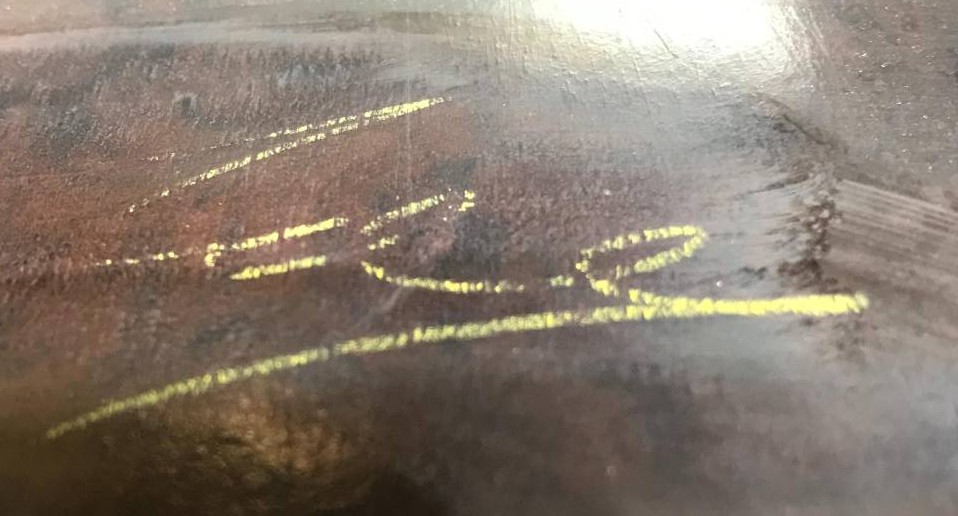
One nice thing I did discover during the disassembly of the receiver was the signature of the person that put the radio together during manufacture on the inside of the Bakelite cabinet.

1946 Philips receiver builder signature

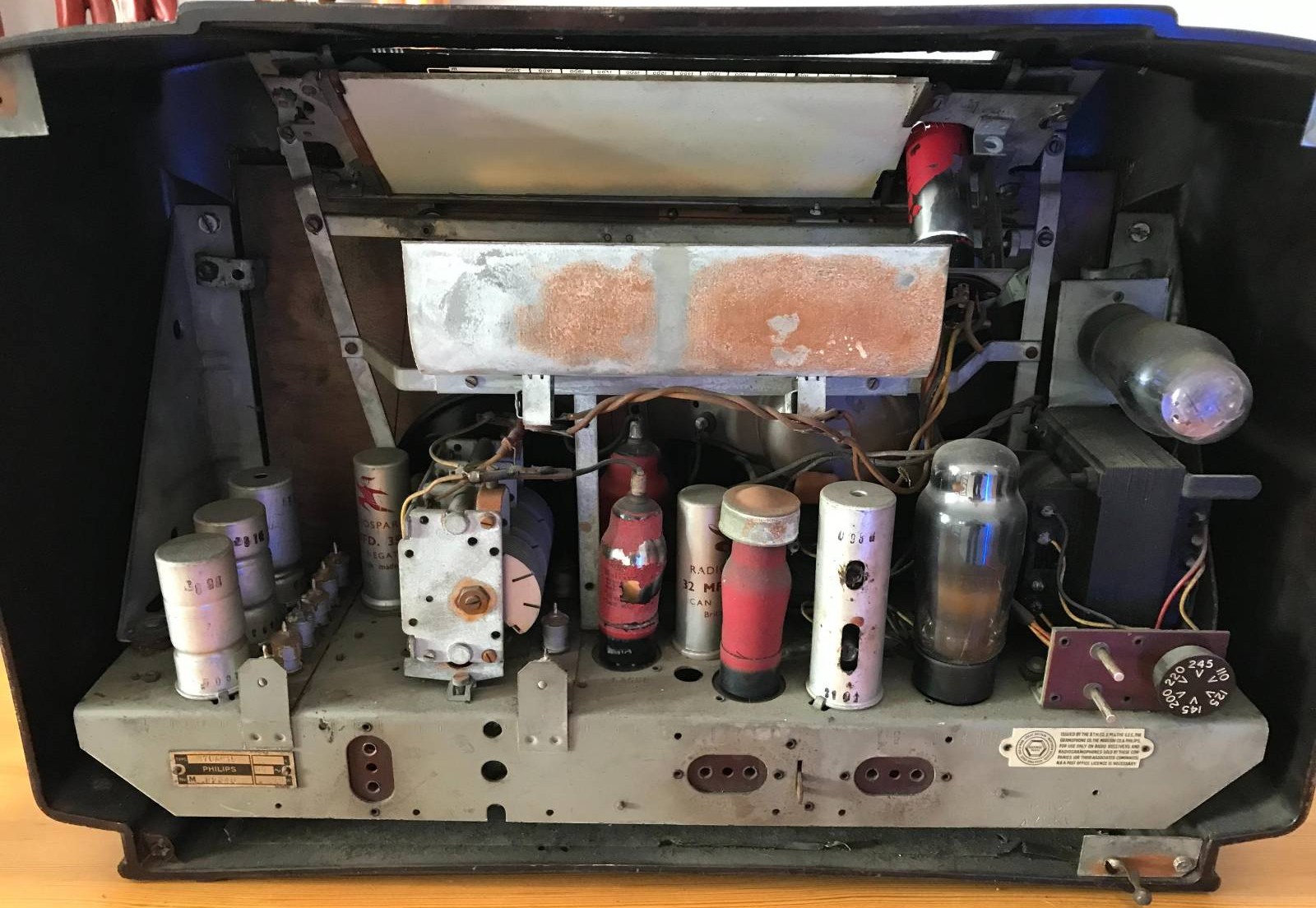
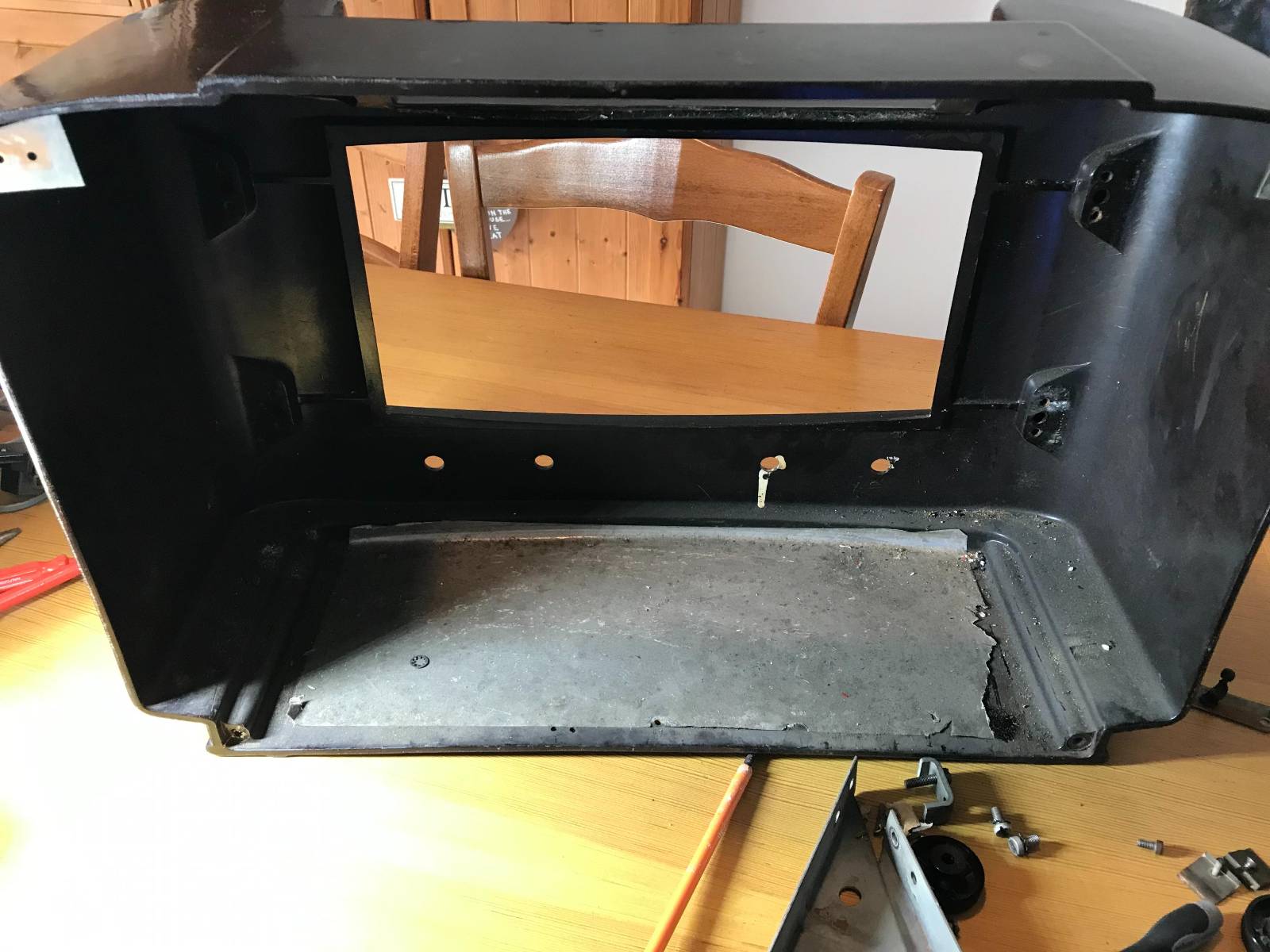
Getting the internals out of the cabinet was fun, so many little screws holding the old valve electronics and tuning display in place.

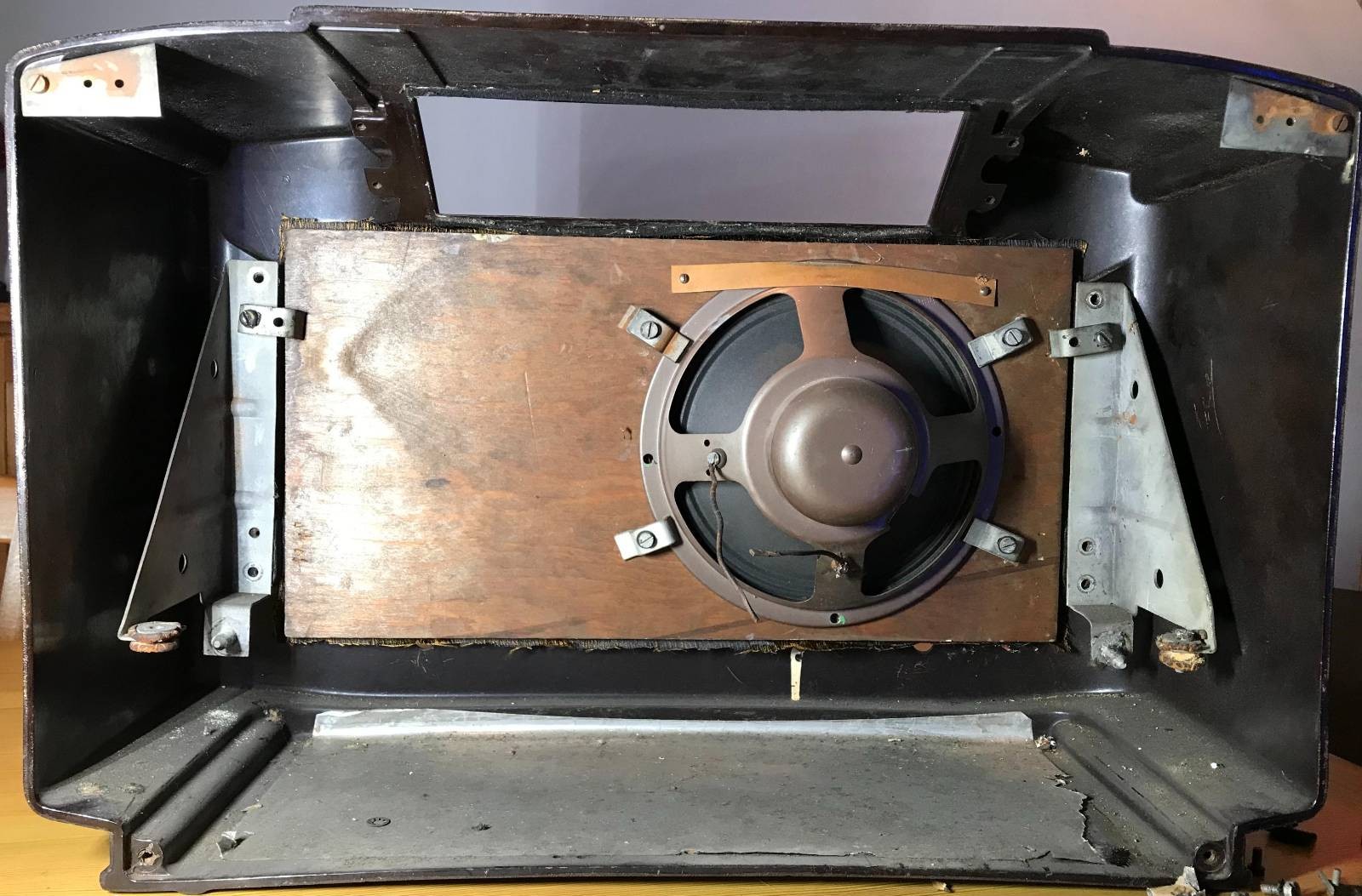
Once the electrical part of the radio was removed I gained access to the old speaker that was fitted to the front panel of the receiver. Unfortunately the speaker cone had a tear in it rendering it useless so I’ll need to get a new speaker(s) for the rebuild.

1946 Philips receiver speaker view

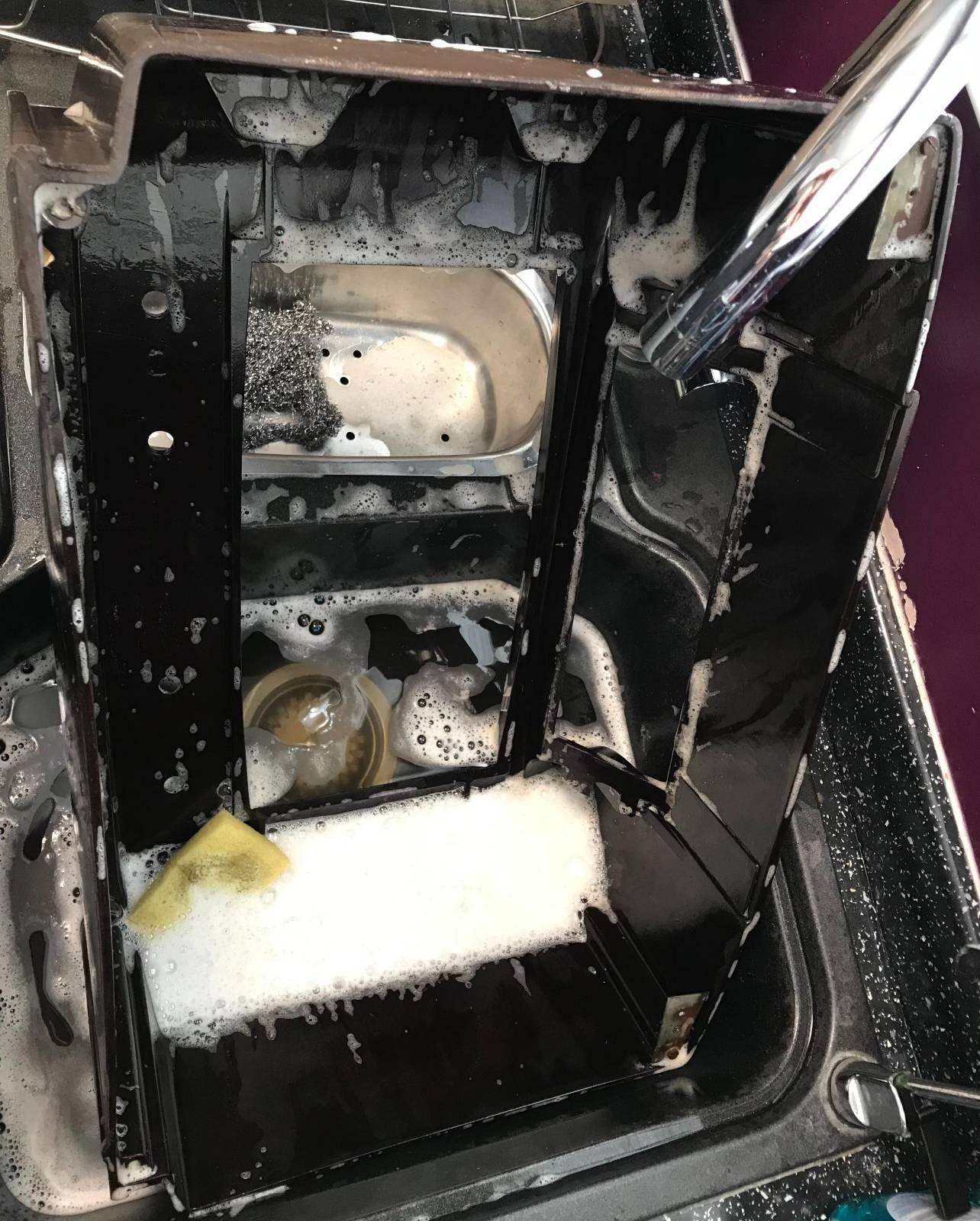
Once I got the speaker and fittings removed I set about cleaning the cabinet inside and out to remove the 79 years worth of dirt and grime that had collected within. The fascia of the receiver cabinet seems to have lost it’s shine and will need to be polished to get it back to it’s original beauty.

It took 5 lots of fresh water and washing up liquid to get the cabinet clean. The first three lots of water looked like mud in no time at all such was the state of the cabinet.

With the cabinet now cleaned and put to one side to dry thoroughly I have started to search for the best type of polish to use to put the sheen back onto it.

Once I’ve got the cabinet looking good again I’ll start fitting the new internals. I also need to find a source for a new piece of material to cover the speaker hole at the front of the cabinet as the original material is looking somewhat tired.

The old Philips Emblem from 1946 on the receiver case

More soon …

Hermes Lite 2 and Xiegu XPA125B Auto Band Switching

Since I’ve had my Hermes Lite 2 (HL2) and Xiegu XPA125B amplifier combo I’ve had to manually change the band setting on the amp as I never purchased the HL2 I/O board when I initially purchased the kit.

At the time I didn’t think I would need it but, changing band manually on the amp (and sometimes forgetting causing tuning issues) is a nuisance and so I put my hand in my pocket once again and ordered the I/O board for the HL2.

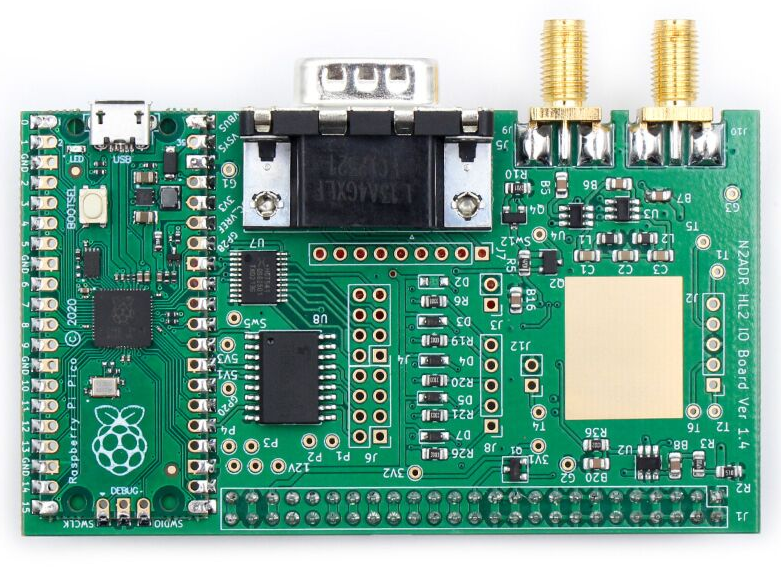
Hermes Lite 2 I/O Board

The HL2 I/O board is a small RaspberryPi Pico controlled device that can be used for a multitude of functions depending on the software loaded. Many people are writing their own software for the Pico to do things like control transverters, remote antenna switches, amplifiers and just about anything else you can think of. It’s a really versatile little add on board for the HL2.

The I/O board arrived after about 10 days from Makerfabs, all nicely packaged as always. Unfortunately due to Christmas, New year and other priorities it’s sat in the box since it arrived.

A couple of days ago I finally got round to getting it out of the box and set about configuring it to control the Xiegu amp.

The Xiegu amp needs three connections from the I/O board. They are PTT, Band Switching Voltage and Ground. These are easily accessed from the I/O board via 3 jumper wires to connect to the DB9 connector on the rear of the board.

The other thing that is required is some software for the RaspberryPi Pico to control the whole process. Steve, M0XVT has kindly supplied me with a copy of the software.

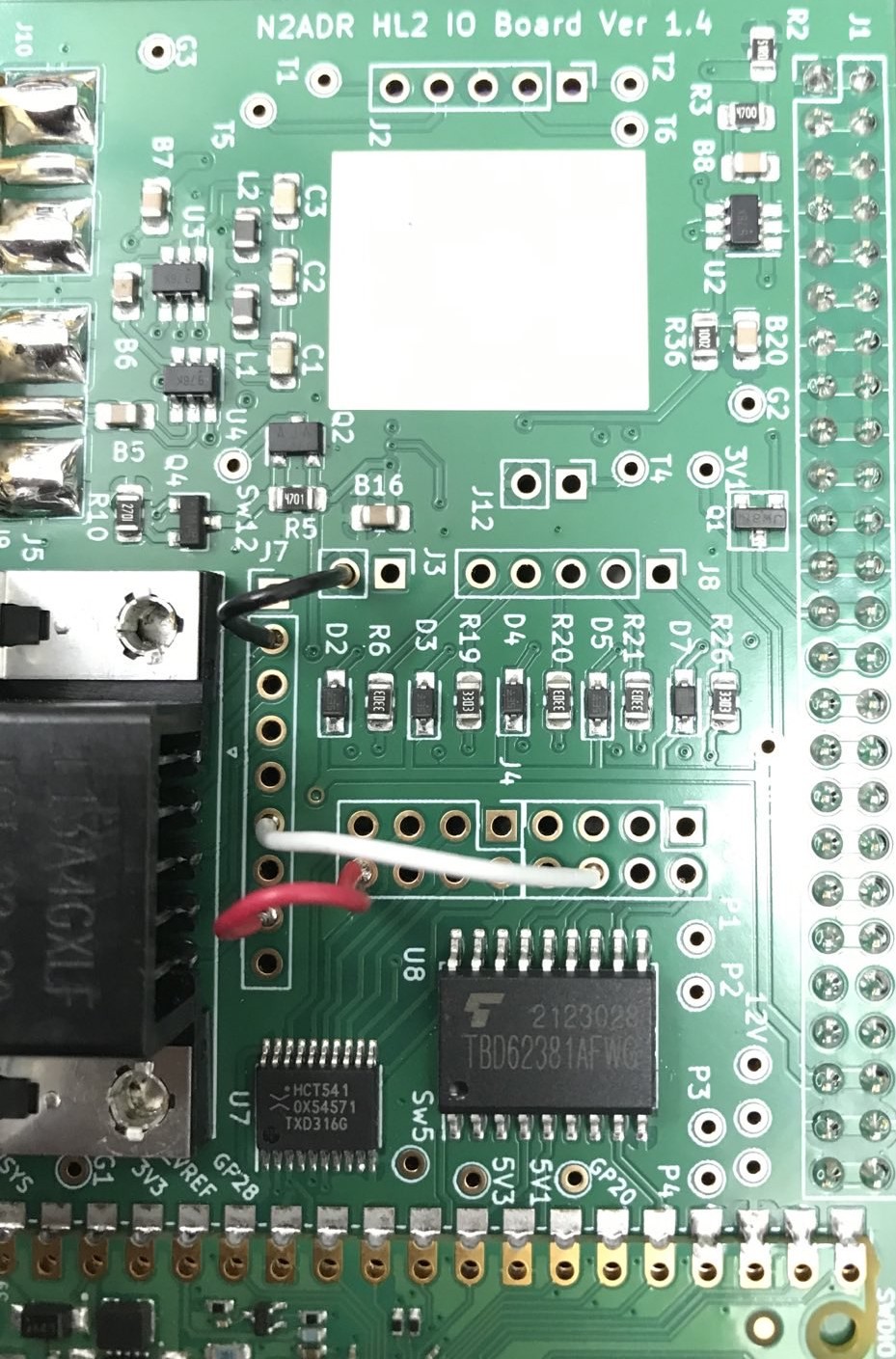
Soldering the jumpers from the relevant points on the circuit board to the DB9 connector was pretty straight forward. You can use any of the pins on the DB9 connector that you like as from the factory the DB9 connector isn’t connected to anything. I decided to use pins 2, 6 and 8 and so will refer to those pins from this point forward.

HL2 I/O Board Jumpers

I used a different colour for each of the jumpers so that I knew which jumper was for which connection. The colours used also match the colours of the wire in the old RS232 serial lead that I cannibalized to make the connection between the I/O board and the amp thus making it easy to ensure continuity.

The colours are as follows:

Black Jumper - Ground - Pin 2 on DB9 Connector
White Jumper - PTT - Pin 6 on DB9 Connector
Red Jumper   - Band Control - Pin 8 on DB9 Connector

The I/O board gets its power feed directly from the HL2 main board however, the 3 pins it needs to connect to don’t have any headers in place and so, it’s necessary to solder a short row of 3 header pins onto the HL2 main board.

I found the easiest way to do this was to put the 3 header pins into the correct position and then use the HL2 to N2ADR filter board connector to hold them in place whilst soldering. This worked perfectly and I soon had the header pins soldered onto the main board.

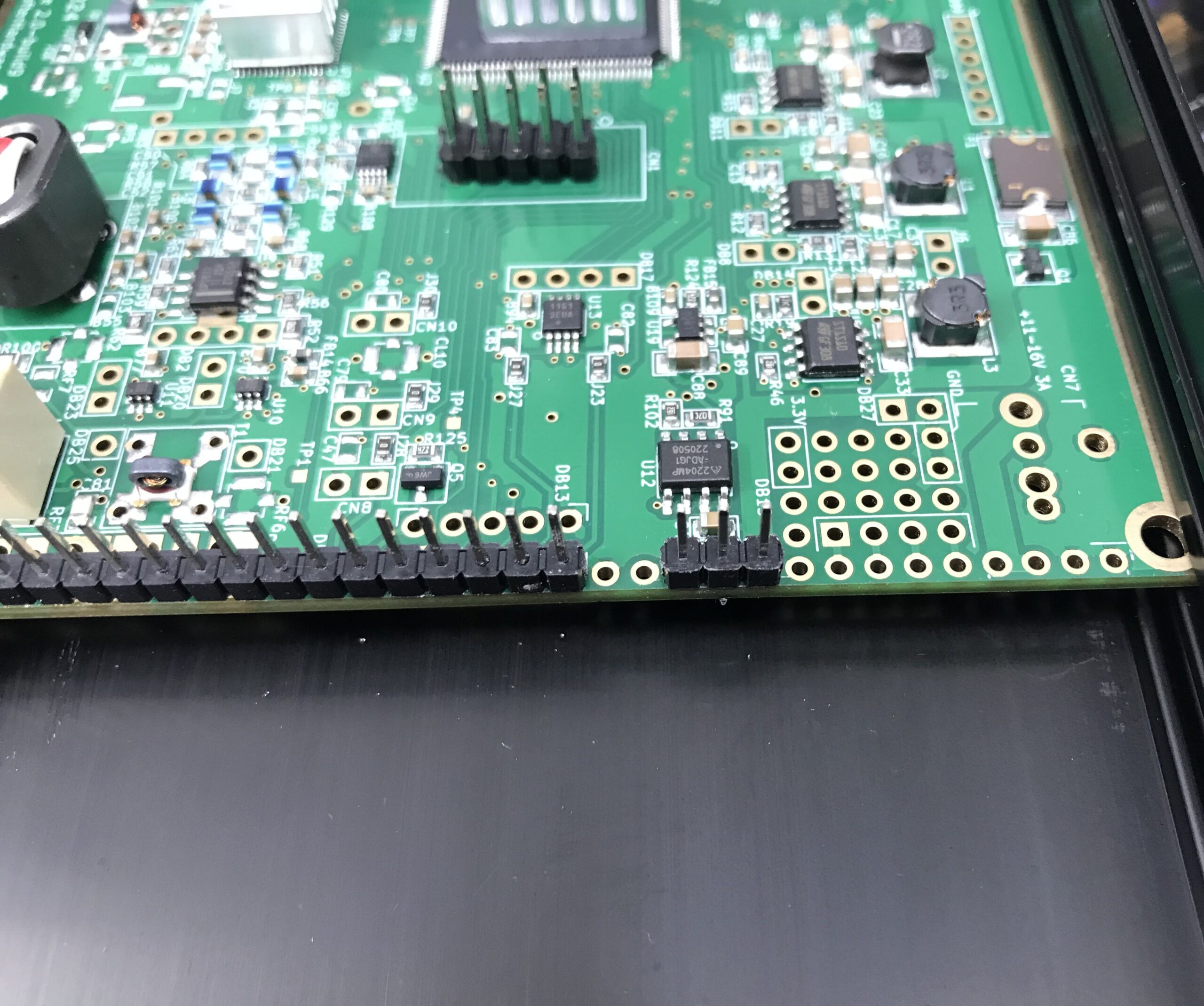
Extra 3 header pins soldered to the main HL2 board

It’s important to note that the 3 extra header pins need to be placed 2 holes away from existing header pins as shown above. Take care to get these pins in the right position so as not to cause any damage to the 3 circuit boards once all are connected and powered up.

Note: The HL2 main board must be removed from the case to solder the extra 3 header pins in place. Take care to ensure the correct fitting of the PA heatsink when when refitting the HL2 main board into the case.

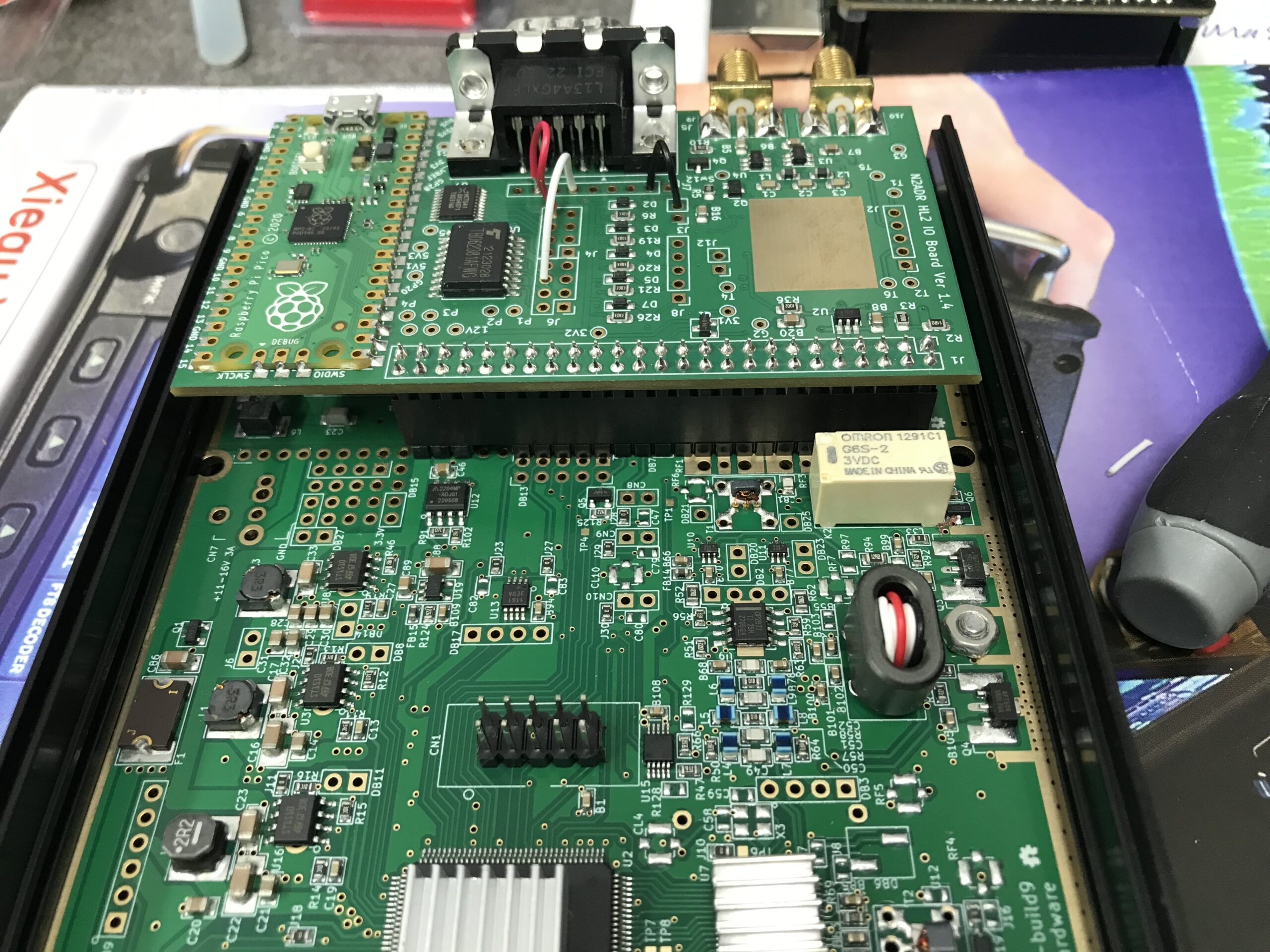
At this point I refitted the N2ADR Filter board back into the HL2 case so that the two sets of header pins aligned correctly ready for the placement of the new I/O board that would connect all 3 circuit boards together.

Preparing the N2ADR Filter board for reconnection

Once the filter board was in place I fitted the new I/O board taking care to ensure all pins aligned with the socket and then gently pushed it home.

Close up of the HL2 I/O board fitted to the main HL2 board and N2ADR Filter board

The close up of the I/O board connector above shows how the extra 3 header pins connect to the last 3 sockets in the I/O board connector. It’s a snug fit with the N2ADR filter board below it.

View of the fitted HL2 I/O board from above

Before the HL2 case can be put back together it’s necessary to load the software onto the RaspberryPi Pico (top left in photo above) that controls the I/O board.

This is accomplished by pressing the tiny button on the Pico whilst connecting a USB lead to the USB socket on the board that had already been plugged into my PC. Once connected the Pico appeared as a USB drive on my Kubuntu Linux desktop. All I then had to do was to copy the software file onto the drive. Once the software file is on the drive the Pico will reboot automatically and the little LED on the board will start to flash to show it has booted successfully. At this point I could safely unplug the USB cable.

The software for the RaspberryPi Pico is available for download below.


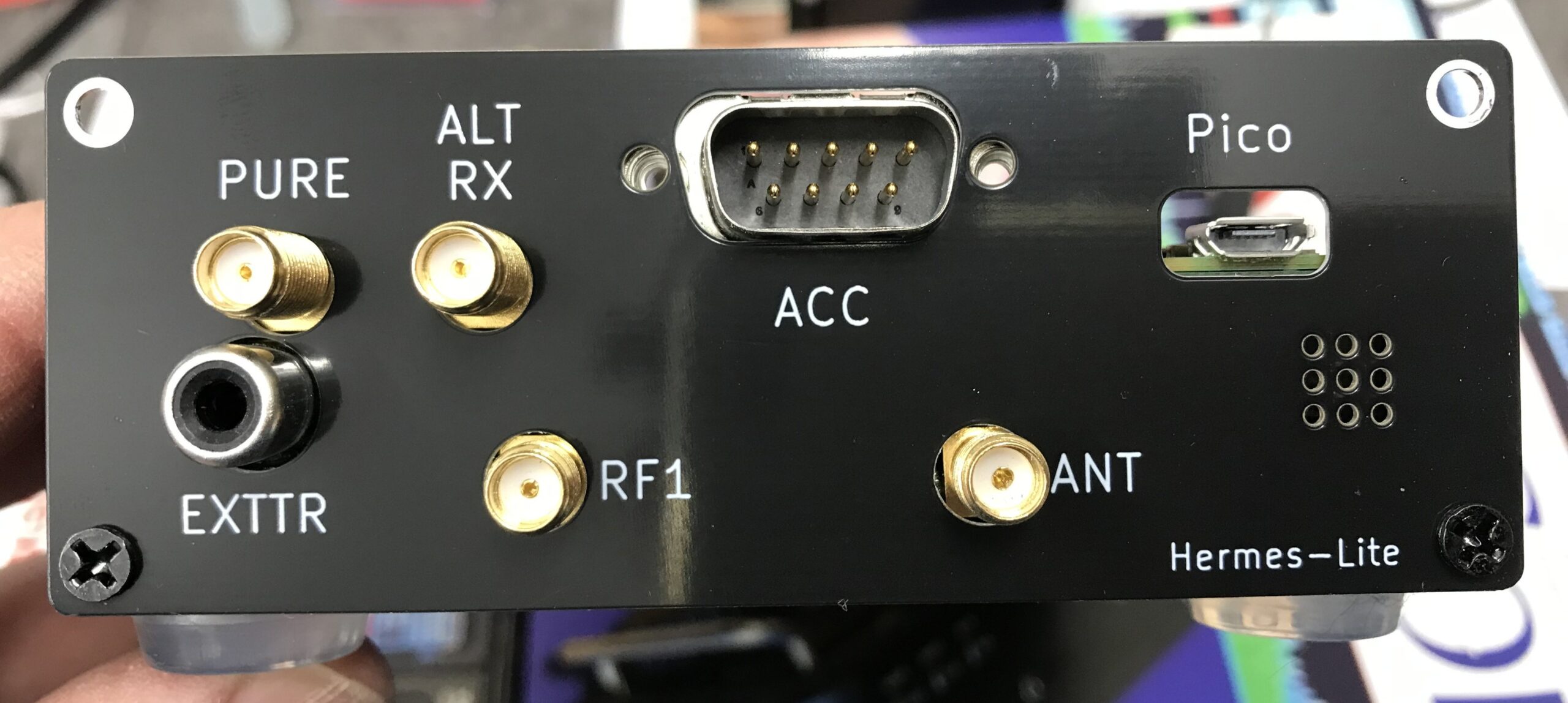
The I/O board comes with a new back panel for the HL2 to accommodate the extra connectors on the rear. Refit the top of the HL2 case and then attach the new rear panel using the original 4 counter sunk screws.

Supplied HL2 I/O board replacement rear panel fitted to the HL2 case
Supplied HL2 I/O board replacement rear panel fitted to the case

The final part of this project is to make the lead that will go from the HL2 rear DB9 ACC connector to the Xiegu XPA125B mini din ACC socket.

For this you will need a 6 pin mini din plug (AKA PS2 plug), (these are readily available on Amazon) and an old fashioned DB9 female connector from the days of RS232 serial leads..

The connections are as follows:

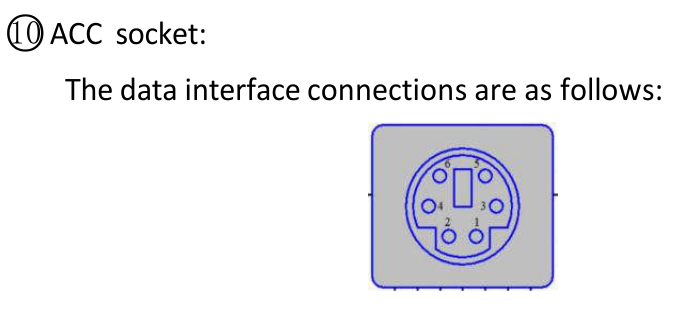
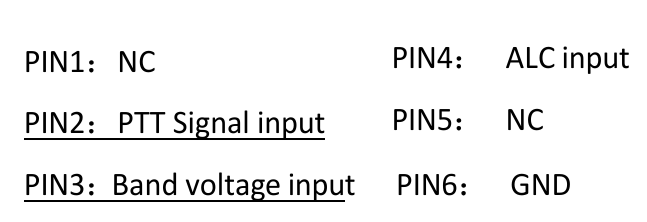
DB9 Pin 2 (BLACK) to Mini Din Pin 6 (GND)
DB9 Pin 6 (WHITE) to mini Din Pin 2 (PTT)
DB9 Pin 8 (RED) to Mini Din Pin 3 (Band Switching Voltage)

Below are a couple of screenshots from the Xiegu XPA125B user manual showing the Mini Din pin layout and the data interface connections for the amplifier.

Xiegu XPA125B Amplifier ACC Interface Connections
Xiegu XPA125B Amplifier ACC Connector Pin Information

Before I connected the lead to the two devices, I tested the end-to-end continuity of the lead to ensure all pins were correctly connected and that there were no shorts between any of the pins.

It’s important that the wires are connected to the correct pins on each end of the lead. Failure to ensure correct connection could cause damage to your HL2 and/or amplifier.

Once the lead had been tested, I connected it to both the Hermes Lite 2 and the Xiegu XPA125B amplifier. I also had to switch the amplifier band switching to AUTO.

Now when I change band on my HL2 in the PiHPSDR software the amplifier also changes band at the same time keeping the two devices in sync. No more manual band changing for me!

I hope this article is of use to other Hermes Lite 2 users who have purchased the Xiegu XPA125B but, have yet to setup auto band switching between the two devices.

Thanks to Steve, M0XVT for all the jumper information and the RaspberryPi Pico Software to get this all working.

UPDATE:
The RaspberryPi Pico software originally came from Ramon, KP4RX. More information can found in this Google Groups article where he released the binary into the wild.

A full table of I/O resources available on the HL2 I/O board can be found on the KP4RX Guthub page.

The source code for the main.uf2 file above can be found at KP4RX.com

More soon …

Building a new Desktop Environment for the RaspberryPi 5

Regular readers of my blog will already know that I am a huge fan of the Linux operating system, it’s clearly evident in most of the content on this website.

I am also a very enthusiastic user of one of the first credit card sized computers that came to be, namely the RaspberryPi. I own all the iterations of this wonderful little computer from the very first version to the latest and greatest, RaspberryPi 5.

This little computer has done more for computing in education than Microsoft and Apple will ever achieve and it’s done it at an incredibly low price making it more accessible to schools, colleges and students than any other platform.

The RaspberryPi has what most consider to be the best support on the planet when it comes to single board computers (SBCs). From the dedicated team that build Raspberry Pi OS, to all the amazing projects and forums that are available, for free on the internet today.

The RaspberryPi computer really has revolutionised computing for the masses.

My RaspberryPi 5 that I am writing this article on
My RaspberryPi 5 that I am using to write this article.

Raspberry Pi OS really is very good. It’s based on the great Debian distro’ that many of us seasoned Linux users dearly love. It’s light weight, fast and meets the needs of everyone that is venturing into the exciting world of Linux and SBCs for the first time.

Overtime as we all become more experienced with Linux on the RaspberryPi we become more demanding and start to find the Raspberry Pi OS desktop environment lacking. Sure it can be enhanced by adding more and more to it however, it never quite reaches the point of satisfaction and we are always wishing for something more.

With the Pi-5, the latest iteration of this great credit card sized computer, users are now able to seriously think about building a more powerful desktop environment for their little berry flavoured computers.

On my desktop PCs dotted around the house I have used Kubuntu for decades. It’s a slick and powerful desktop environment that has met my needs for many years and I love it more than any other Linux desktop. Sadly Kubuntu isn’t easily available out the box for the RaspberryPi and so I decided that it was time to replicate it as closely as possible on my new, super powerful RaspberryPi 5.

When I ordered my RaspberryPi 5 from Pimoroni I added the NVMe base and 250GB M.2 SSD drive to the order. Up until now I’d always used SD cards however, they are slow and unreliable and so I decided that since the Pi-5 has PCIe it was time to take the step away from SD cards and start using SSD technology.

Getting the OS onto the SSD is a two stage affair. First you have to create a bootable SD card to boot the Pi-5 from and then use it via the RaspberryPi Imager to install the OS onto the SSD. It’s a bit long winded but, easy enough.

Since I’m a huge Kubuntu fan I decided my desktop of choice for my new Pi-5 was going to be KDE-Plasma. I had tried to install this desktop before on older model Pi’s however, it ran so slow that it was unusable. With the new Pi-5’s increased computing power and the speed of the SSD I was confident that this was now possible.

I started out installing the Lite version of Raspberry Pi OS on the SSD. This is a command line only version of Linux that doesn’t include any desktop environment, a nice clean slate to start from.

RaspberryPi Imager showing Pi OS Liite (64bit)
RaspberryPi Imager showing Pi OS Lite (64bit)

Once the Lite version of the OS was installed on the SSD I shutdown the Pi-5 and removed the SD card and then powered the Pi-5 back up again so that it booted from the SSD.

Upon booting I was presented with the simple Linux Login prompt. After entering my username and password as setup during OS install I landed at the Linux command prompt.

sudo su -

I used sudo to become root user as shown above and then set about building my new KDE based super computer. First I needed to update the operating system with all the latest patches and security fixes.

apt update && apt dist-upgrade

The update and upgrade process ran for a while but, it was soon complete.

reboot

I issued the reboot command and then logged back in again, I was now ready to start building the KDE desktop environment.

sudo su -
apt install kde-plasma-desktop gldriver-test

Becoming root again I type the command to install the KDE-Plasma desktop and the graphics-related config services. There’s a lot of packages to download and install so, I left it to do its thing.

A little while later all the packages were installed and ready to go. I now needed to tell the system to boot into the new graphical user interface instead of the command prompt using systemctl.

systemctl set-default graphical.target

Once this was done I needed to make a change to the display settings using the raspi-config program.

raspi-config

Selecting No.2 on the menu, Display Options and then D2 Screen Blanking, I disabled screen blanking so that I got the full 4K support for my KDE Desktop.

Once the system had been configured for a graphical user interface there was only one thing left to do and that was to shutdown the RaspberryPi.

shutdown -h now
The beautiful KDE-Plasma Desktop on RaspberryPi 5

Powering the Pi-5 back up again I was greeted by the standard KDE Plasma login screen and then, after logging in I was transported to the beautiful KDE desktop. I was now smiling like a Cheshire cat!

The KDE desktop is incredibly snappy on the Pi-5 with an SSD, app’s open instantly and run with minimum CPU exertion. It was now time to load the rest of the KDE application suite to complete the build. Popping open a terminal I hit the command line once more.

sudo su -
apt install kde-full vim yakuake vlc firefox rsyslog

This loads the full set of KDE applications adding just about everything you’ll ever need to the desktop environment. It’s about 1GB of packages and so depending on your internet speed it could take a while but, it’s well worth the wait.

Once complete you are ready to go with a fully functional, snappy, powerful desktop.

I’m extremely pleased with the performance of the Pi-5. KDE is super fast, snappy and responsive. With 8GB of RAM on tap the RaspberryPi has no problem with performance. The Pi-5 and KDE-Plasma really do make a great desktop computer at an incredible cheap price.

Looking for a new computer?

Add a cheap USB sound card and a pair of speakers and this little setup will meet the needs of 90% of the population with ease and go on to satisfy the more seasoned, demanding Linux user or programmer without breaking the bank.

More soon …

Using the DL1YCF version of PiHPSDR with the RadioBerry

(This information is also for the Hermes Lite 2, Adalm Pluto, Pluto+ and LibreSDR)

During my RadioBerry build I started out using the version of PiHPSDR that was created just for the RadioBerry. The problem with this is that it is hard coded for a very small screen making it hard to use on a big screen since the user cannot resize the window dynamically.

I decided to look for a forked version of the PiHPSDR software that had the ability to change the window size to suit all use cases. During my search I stumbled across the DL1YCF fork of the source code that has some enhancements, one of which is the ability to change the display size.

In no time at all I had the source code downloaded and compiled only to find that it didn’t work with the RadioBerry. After some investigation I found that this was due to the fact that the RadioBerry software has compiled into it code that is used to access the GPIO pins on the RaspberryPi so that it can communicate with the RadioBerry HAT. This is fine except that the DL1YCF version of PiHPSDR also has code in it to use the GPIO pins. This of course causes a conflict and the net result is that nothing works.

Reading through the source code and Makefile I found that all I needed to do was to compile a version of PiHPSDR without GPIO support. This would then remove the conflict and allow the RadioBerry software to operate correctly.

To this end I put together a download/compile/install script for the DL1YCF version of PiHPSDR that will work on a RaspberryPi with a RadioBerry HAT and give the ability to resize the window to fit any size screen.

The script also works on a Linux Desktop PC running Ubuntu/Kubuntu/Linuxmint/Debian operating systems. (It will most likely work on other distro’s too but, these are all I have to hand currently). You can of course also use this software with a Hermes Lite 2 transceiver.

DL1YCF PiHPSDR running on RaspberryPi 4 with RadioBerry HAT on a large monitor

To install this enhanced version of PiHPSDR on your RaspberryPi/Desktop PC with GPIO support disabled, download the installation script below, unzip it and run it in a terminal on your RaspberryPi/Desktop PC in your home directory. (/home/<your-username>).

The script will download the latest source code from the DL1YCF github, disable the GPIO code and then compile and install it to your computer. If installing on a RaspberryPi it will create an icon on the desktop for you to use to start the software.

If installing on a PC then you will need to create your own desktop icon as the one created only works on a RaspberryPi. You can of course just start the software from the command line in a terminal. (My preferred method).

If you have a RaspberryPi 5 then I highly recommend that you run this version of PiHPSDR on it as it has a lot more computing power and handles using dual receive with ease. It will run on a Pi4 but, you will load the CPU more as it’s not as powerful as the later model Pi5.

The script will ask if you want to compile in SOAPYSDR support so that PiHPSDR will work with RTL-SDR, Adalm-Pluto, Pluto+ and LibreSDR. Enter Y to compile in support or N if you don’t need it.


I hope this proves useful to all the RadioBerry, Hermes Lite 2 and Pluto users out there who want to use PiHPSDR on a big screen.

More soon …

RadioBerry Software Install

For the last week or so I’ve been playing with a RadioBerry HAT for my RaspberryPi computer. The RadioBerry is a cut down version of the Hermes Lite 2 with just 20mW output power and separate TX and RX antenna ports. It’s a really neat little package that sits on top of a RaspberryPi4/5 and creates a neat little HF transceiver.

RadioBerry HAT
RadioBerry HAT

I initially started with the RadioBerry HAT on my Pi5 but, I soon realised that the software really doesn’t work well at all on the Pi5. I’m not 100% sure as to why but, for some reason it holds one core at 100% continuously. It seems that the RadioBerry software is single threaded. The end result is that on the Pi5 you cannot use a sample rate above 9600 before the IQ stream starts to stutter.

By contrast, installing the RadioBerry software onto a Pi4 it performs perfectly upto the maximum sample rate of 384000 without any stuttering. I’ll need to spend some time going through the source code to try and determine why it doesn’t work correctly on a Pi5.

Whilst going through the source I discovered that the developer has put some code in that collects data from the running computer and sends it to the developer’s website. Some of this data is then made public via his website, http://www.pa3gsb.nl/radioberry/api/read.php

One of the things displayed on the website is the Mac address of the RaspberryPi on which the RadioBerry is running. This is a security risk and should never be done!

The most annoying thing is that this is done without authorisation. The installation doesn’t state that it’s going to collect data every time you start your RaspberryPi computer nor does it offer the ability to opt out. It also doesn’t inform the user that it’s going to pass the data on to a third party. In some cases it even collects HAM Radio Callsign and location data and displays it on a public website, a clear breach of the UK/European Data Protection Law.

Finding spyware in open source software is really poor and something most open source developers would never consider doing.

To this end I have disabled the spyware in the version of the RadioBerry software that I am using and am making it available to everyone else to use via this blog.

So, to install the RadioBerry software you just need to download the installation script and run it in a terminal on your RaspberryPi computer.

The script will download the modified source code, compile it and install it on your RaspberryPi ready for you to use.


I encourage everyone that downloads the script and the source code to take a look at it and ensure you are happy with it. It’s important to know what you are running on your computer and what it does.

You can find the spyware code in the register.c file (It’s all commented out with “//” marks). The function now doesn’t pass any data at all to the public website.

I hope some of my readers who are experimenting with the RadioBerry transceiver find this useful.

I will soon be publishing an article on an enhanced version of PiHPSDR from DL1YCF to use with the the RadioBerry to complete the project.

Important Update:

There is an issue with the RadioBerry code that renders it useless if you use a kernel later than the version shown below:

Linux Radioberry 6.6.51+rpt-rpi-v8 #1 SMP PREEMPT Debian 1:6.6.51-1+rpt3 (2024-10-08) aarch64 GNU/Linux

Updating the O/S Kernel to any version later than the version shown above will stop the RadioBerry software from working. Recompiling of the code also fails due to the Kernel update and at the time of writing this cannot be fixed without a code rewrite by the original developer.

I also recommend that once you have built a working RadioBerry on a RaspberryPi 4 you should disable the automatic updates of the O/S to stop the system from failing in the future.

You can disable the automatic updates by entering the following commands into a terminal:

sudo systemctl disable apt-daily.service
sudo systemctl disable apt-daily.timer

sudo systemctl disable apt-daily-upgrade.timer
sudo systemctl disable apt-daily-upgrade.service

You can check the version of the kernel you have installed using the following command in a terminal:

uname -a

Hopefully this will help anyone that is having issues with their RadioBerry after an O/S update.

More soon …

Another new radio!

Many years ago when I lived in France I had a Flex-3000 transceiver, one of the first fully SDR transceivers on the market. It was paired with a proprietary Windows XP application called PowerSDR (now Opensource and called Thetis) and connected via a firewire connection.

17 years later I am once again venturing into the world of SDR transceivers in the form of a Hermes Lite 2. (HL2)

The HL2 hardware is available via the Makerfabs website in kit form. I ordered the HL2 motherboard, the N2ADR Filter Board to ensure a clean signal from the transceiver and the enclosure. Total cost for all the parts and shipping was £288.00 including all taxes.

The kit took about 10 or so days to arrive and was very easy to put together making sure to fit the PA transistor heat sink the right way round so that it doesn’t short out the main board. (There are many videos about this on YouTube)

Once the hardware was put together I needed to install some software to control/drive the HL2. Being a heavy weight Linux user my software choice had to come from the Opensource world.

M0AWS Hermes Lite 2 SDR Trasnceiver and Xiegu XPA125B Amplifier

After much research and chatting with other HAMs on the Matrix who have the HL2 I found that most people use the closed source SDR Console software to control the transceiver. Since this software is for Windows it’s not something I can use as I don’t have any Windows PCs, they’re all Linux only.

To this end I started researching Linux SDR software for the HL2 and decided that PiHPSDR was the one I was going to try first.

PiHPSDR was originally written for the RaspberryPi 3/4/5 single board computers (SBCs) but, I wanted to have a go at compiling it on my Kubunu Linux desktop PC. I found it straight forward to follow the instructions in the pihpsdr-install.pdf file and in no time at all I had the software compiled and running.

PiHPSDT running on Kubuntu Linux 22.04LTS
PiHPSDR running on Kubuntu Linux 22.04LTS

PiHPSDR is infinitely configurable and thus it feels like it has an infinite number of menus and options. Since the HL2 has two separate receivers, it’s possible to listen to two bands at the same time. This is the one feature I really missed more than anything with my FTDX10 so, I’m glad to have dual receive capability back once more!

Going through all the settings I realised that the A and B VFOs have individual settings. Initially I setup the software using just VFO A but, when I switched over to VFO B none of my settings were there. I then had the realisation that the settings apply only to the active VFO. I quickly went through all the settings again for VFO B and all was well.

In no time at all I was on the air with just 5w as my Xiegu amp hadn’t arrived. Not being perturbed I tuned up on the 15m band and started searching for stations. Interestingly it was CQWW SSB weekend and the band was full of contest stations. Working my way along the spectrum I found I was able to work quite a few stations with ease using my vertical and inverted-L antennas.

Contacts of note were VE3KG at 3406 Miles, VE3JM at 3382 Miles, RW9DX at 2380 Miles, KC1XX at 3331 Miles and N1DE at 3600 Miles. I also worked a bunch of European stations and had a great time giving away points with my little QRP rig.

Contests are a good time to try out new radios as all the big stations with good ears are on the bands and make the effort to get us QRP guys in their logs.

I have been extremely impressed with the receivers in the HL2 radio. It handles both strong and weak stations exceptionally well. PiHPSDR really does have brick-wall filtering and I was able to work the weaker stations right next to large contest stations with ease. At no time did the front-end of the receiver get overloaded.

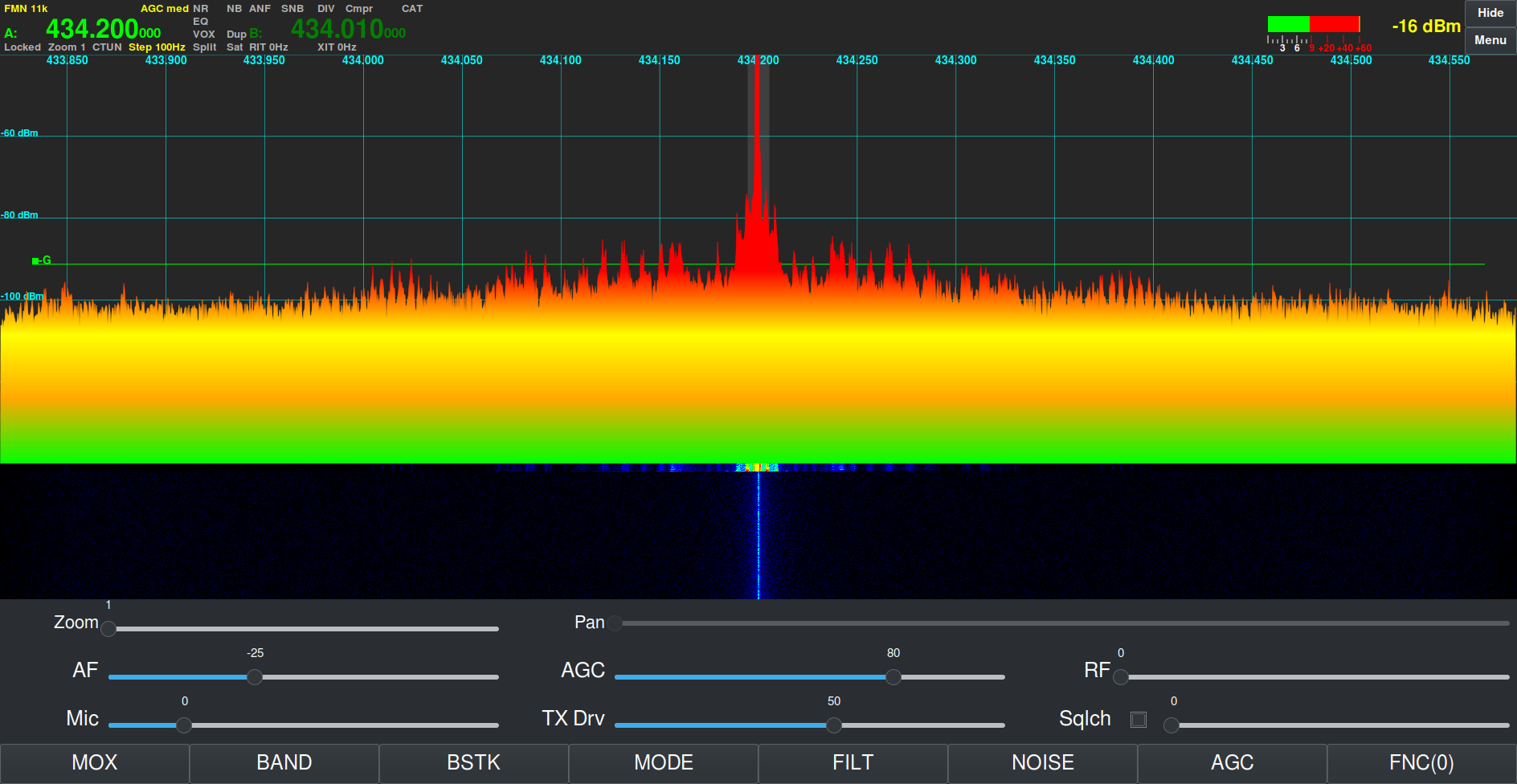
Below is a short video clip of a conversation on the 80m band. The band was quite noisy however, with a reduction of the AGC gain and the 2700Hz filter it’s possible to remove almost all the noise.

Hermes Lite 2 SSB reception on the 80m Band

On CW the radio is a real delight. With the filtering and AGC gain control I am able to use extremely narrow receive filters without any ringing whatsoever. I would say that on CW the HL2 is as good as my FTDX10 when it comes to receiving even the weakest of stations.

I’m sure on paper the FTDX10 receiver has better numbers however, to the ear there really is no discernible difference.

Below is a short video clip of D4DX on CW on the 80m band. The band was noisy but, with the 100Hz filter enabled and clever use of the AGC Gain I was able to remove almost all the noise completely, reducing fatigue on the ears and making reception very easy even though there was some fairly deep QSB at times.

Receiving D4DX on CW on the 80m band using 100Hz filter and reduced AGC gain

A few days later my Xiegu XPA125B amplifier arrived. Unfortunately the amp didn’t come with the normal PTT lead that comes from the factory and is detailed in the user manual. For some bizarre reason this is a chargeable option when you buy the amp from Martin Lynch and Sons even though it is included from the factory.

This meant I had to make a lead which was a problem as I didn’t have one of the mini DIN plugs required for the connection to the amplifier. Jumping onto Amazon I ordered a packet of two and sat back and waited for their arrival.

A couple of days later the DIN plugs arrived and I quickly made up the necessary phono/RCA to mini DIN lead and got the amp operational.

The Xiegu XPA125B isn’t cheap but, it’s a really nice bit of kit. The neat little LCD display keeps you informed of power O/P, I/P and O/P SWR, voltage, current draw, temperature and band selected.

With just 0.7w of input from the HL2 I’m able to get a full 100w O/P from the amp. On the lower bands I have to reduce the O/P from the Hermes Lite 2 even further so that I don’t over drive the amp.

Being an avid Short Wave Listener (SWL) I wanted to see how the HL2 performed when listening to the big AM broadcast stations. To my surprise it makes an excellent SWL receiver with better AM demodulation than many of the more expensive radios. Having the option to select receive filters up to 16Khz wide I found I was able to get the best audio possible from many of the broadcast stations including Radio Caroline on 648Khz. It’s quite an improvement over the 12Khz maximum on the FTDX10.

Listening to AM Broadcast stations

What makes this project even more exciting is that both the hardware and software are from the OpenHardware/OpenSource world. The complete circuit diagram, PCB layout and information is available for all to download, something you don’t often see these days!

PiHPSDR is one of the nicest SDR applications I’ve seen in the Linux world and even comes with a 200 page downloadable user manual. Something you don’t see in many Opensource projects. The source code for the application is downloadable and you are able to make your own changes to it without restriction.

Overall I am really pleased with the Hermes Lite 2 SDR transceiver.
It has two excellent receivers, is infinitely configurable via the PiHPSDR software and performs extremely well under all conditions. Since getting the radio I haven’t even switched on the FTDX10.

More soon …

AllStarLink Control Dashboard v2.0

I recently updated my Node-RED AllStarLink Control Dashboard to v1.2 to squash a few bugs with the help of Steve, M0XVT who did a lot of testing for me. This spurred me on to get v2.0 completed, tested and released into the wild.

M0AWS AllStarLink Control Dashboard Menu View
M0AWS AllStarLink Control Dashboard v2.0

v2.0 comes with a bunch of new functionality that I think many will find useful. I’ve added a Manual Node Connect section that provides the functionality to enter a node number and connect to it, something I wanted to have from the outset but, saved for the second release.

M0AWS AllStarLink Control Dashboard Manual Node Connect View
M0AWS AllStarLink Control Dashboard v2.0 Manual Node Connect View

I’ve also updated the the Hubs/Repeaters section so that it provides better global coverage of the AllStarLink network with new nodes in Australia, South Africa and the USA added to the default set.

M0AWS AllStarLink Control Dashboard Hubs/Repeaters View
M0AWS AllStarLink Control Dashboard v2.0 Hubs/Repeaters View

In the Personal Nodes section of the app I’ve added my own node so, if you do download the app and use it, please connect to my node and say hello! I’d love to hear from people that are using the app and get your feedback.

M0AWS AllStarLink Control Dashboard Personal Nodes View
M0AWS AllStarLink Control Dashboard v2.0 Personal Nodes View

In the Test Nodes section there are now two parrot nodes for audio testing. iParrott is still my favourite however, I’ve also added the HubNet parrot as a second option.

M0AWS AllStarLink Control Dashboard Test Nodes View
M0AWS AllStarLink Control Dashboard v2.0 Test Nodes View

There’s now a new ASL Information section that provides direct access to the network bubble map for your node, a keyed nodes list (Useful for finding nodes that are being used right now), an Active Nodes List and the Full Nodes List for the ASL network. Having access to this information means there really is no need to access Allmon/Supermon to find this information as it’s all available via the app.

M0AWS AllStarLink Control Dashboard ASL Information View
M0AWS AllStarLink Control Dashboard v2.0 Information View

Finally, the Manage Node section of the app also gets an update with the addition of a Disconnect All Nodes button. This comes in handy when you’re connected to a bunch of nodes and need to clear down quickly.

M0AWS AllStarLink Control Dashboard Manage Node View
M0AWS AllStarLink Control Dashboard v2.0 Manage Node View

As you can see there’s been quite a few changes to the app providing some new functionality whilst updating the previous version to make it even more useful. You can download the AllStarLink Control Dashboard v2.0 flow below.

To import the flow, open the Node-RED flow editor and import the flow from the burger menu. Once imported, double click the Get ASL Node Number node at the top of the flow, delete the credentials and then create new credentials for connecting to your RaspberryPi/SHARI AllStarLink node. Then go to each blue BigSSH Node in the flow and select your new credentials entry in the drop down list. Once this is done deploy the flow and you’re ready to go.

Note: If you have a v1.x version of the app already running you will need to either delete the flow or disable it by disabling all the trigger (inject) nodes and deploying so that the old and new apps aren’t trying to control the ASL node at the same time.

For more detailed information on how to deploy the app (v1.x/v2.0) from scratch please see my original article for the v1.0 deployment as it covers everything you will need to know.

Thanks to Steve, M0XVT for his help testing v2.0 of the AllStarLink Control Dashboard and getting it out into the wild so quickly.

More soon …

Wouxun KG UV-980PL Quad Band Radio

I recently decided to look into a 2m/70cm FM radio for the shack for use on the local 2m/70cm repeaters and was considering the offerings from Yaesu and Icom however, the Wouxun KG UV-980PL caught my eye as it is a quad band, full duplex radio. Not knowing much about Wouxun radios I had to do some research to get an idea of what it’s like. Generally the radio gets very good reviews and most mention the excellent build quality.

There are two versions of the 980P radio, the 980PL that offers 6/4/2m and 70cm bands and the 980P that offers 10/6/2m and 70cm. The 4m is a band I’ve been wanting to try for some time and the 980PL with it’s 4m band coverage became even more appealing.

Wouxun KG UV-980PL Quad Band FM Duplex Transceiver

I decided to take a trip down to Martin Lynch and Sons (MLANDS), a good 2 hours or more drive for me, so that I could get hands on with the radios that I had been looking at.

I invited Alan, G1SQB along for the ride and a day out playing with radios as he lives 3 miles away and we often chat on air.

Arriving at the store we grabbed a hot brew and set about playing with the great selection of radios on display.

I initially looked at the Icom IC-2730E, a dual band full duplex transceiver that has been around for about 10 years and has good reviews. As expected the build quality is excellent and very easy to use. I found I was soon able to set up memories etc via the front panel controls. The only draw back is that it isn’t supported by the CHIRP programming software that I use. Other than that it certainly meets all the requirements for a 2m/70cm FM transceiver

Icom Ic-2730E Duplex FM Transceiver
Icom IC-2730E FM Duplex Transceiver

Next I moved on to the offerings from Yaesu including the FTM-500DE 2m/70cm transceiver. The colour screen is very nice and the menu system very easy to use however, the price is getting on for close to double that of the other radios and it doesn’t really offer anything more that interests me since I’m only looking for an analog radio.

Yaesu FTM-500DR dual band FM Transceiver

Sadly there wasn’t a Wouxun UV-980PL out on display and so I had to persuade the salesman to get one out of stock for me to play with. Unpacking the radio I was surprised at how good the build quality is, it really is comparable to the other radios that I had been looking at.

The Wouxun menu system is fairly easy to use once you’ve looked at the manual and got to grips the abbreviations used. The big plus is that this radio is CHIRP compatible with an optional programming cable (£19) and so loading the memories with repeaters etc will be extremely easy.

The Wouxun has dual receivers built in with a quad-plexer so, you can transmit on one band whilst listening to another band on the other receiver. One thing to note is that the 1st receiver covers all the bands, 6/4/2m and 70cm however, the 2nd receiver only covers 2m and 70cm so, it’s not possible to receive 4m and 6m at the same time. The radio also only has one antenna connection on the rear, would had been great if it had one connector for each receiver.

The really good thing about the Wouxun UV-980PL is that it comes with everything you will need, apart from the programming cable!

After much tinkering I decided to purchase the Wouxun KG UV-980PL, a Diamond V2000 6/2m and 70cm antenna plus 20m of Hyperflex-13 coax cable and connectors.

In the box you’ll find two mounting options for the removable head. There is a short connecting cable for use when the head is mounted directly on the radio body and a 5m long connecting cable for mounting the head remotely. This is really useful as I wanted to mount the head on a mic boom arm so that it’s easily accessible and didn’t clutter the desk space in the shack.

M0AWS Shack
Wouxun KG UV-980PL head mounted on a Mic boom arm

Since the radio also comes with the mobile mount I’ve fixed the radio body on the wall behind the PC monitor out the way. This setup has proven to be extremely good as I can see what’s happening on the display at a glance and easily grab the mic if called.

Programming the radio memories is extremely quick and easy using CHIRP. I had the local repeaters and my AllStarLink node frequencies and offsets uploaded to the radio in no time at all and was soon on air.

Programming the memories on the Wouxun UV-980PL using CHIRP

The microphone that comes with the radio is extremely good. You can operate most of the controls on the radio directly from the mic with ease and it has a good feel in the hand. Audio reports have also been very good and there’s no need to change it.

I’ve not yet got the new Diamond V2000 antenna erected but, I’ve been using the radio with my homebrew 2m/70cm end fed vertical dipole and my 4m band end fed vertical dipole and am getting excellent results. I can access all the local repeaters using the lowest power output setting and only have to use the medium/high setting for the repeaters that are further afield.

On the 4m band the radio performs well and I’ve been surprised at the distances I’ve been able to cover even though my 4m antenna is only 6-7m above the ground currently.

A few days after I got the new Wouxun radio there was an ARISS event whereby a group of Girl Guides would be talking to Astronaut Sunita Williams aboard the ISS. This was a great opportunity to test the receive capability of the radio and so I setup ready for the pass. Using just my simple 2m/70cm end fed vertical dipole I got great reception as can be heard in the video below.

Overall I’m extremely pleased with the Wouxun KG UV-980PL quad band radio and considering it’s much cheaper than the offerings from the main radio manufacturers it’s well built and performs extremely well. If you’re looking for a simple, analog FM radio for 6/4/2m/70cms then you can’t beat it!

More soon …

AllStarLink Control Dashboard v1.2 update

I’ve been working on squashing some bugs in my Node-RED AllStarLink Control Dashboard with the help of Steve, M0XVT which has resulted in a new version of the flow now being available for download below.

If you’re reading this and aren’t too sure what it is all about then, have a look at my original article detailing the Node-RED AllStarLink Control Dashboard that I developed and wrote about back in September 2024 and hopefully it’ll all make sense.

This new version of the flow resolves an issue whereby the dashboard used an incorrect node number for the node it connects to resulting in it not working unless a piece of code was changed. The update was a simple change to add a couple of nodes that connect to the RaspberryPi and read the Asterisk/AllStarLink node number from the asterisk configuration files at startup.

Node-RED AllStarLink Control Dashboard v1.2 additional sub flow

I also fixed another bug whereby the buttons could show a false connect on a button when the user connects to another node via AllMon2/Supermon instead.

This flow no longer has the blue spare button as it now connects to a node in Melbourne Australia.

Node-RED AllStarLink Control Dashboard v1.2

You can download the new, v1.2 updated flow below and import it to your Node-RED flow editor using the standard import tool from the burger menu in the flow editor.


Huge thank you to Steve, M0XVT for his patience and testing skills during the debugging and testing of the fixes to the flow.

More soon …

ISS Special Event contact with Astronaut Sunita Williams

A special event organised by the RSGB and Amateur Radio on the International Space Station (ARISS), in collaboration with the UK Space Agency, Girlguiding Surrey West and Brooklands Museum’s Innovation Academy programme took place today and I was fortunate enough to actually receive the signal from the ISS as it passed over Europe.

The contact with NASA astronaut Sunita Williams was also attended by The Duchess of Edinburgh who asked the first question via radio to the NASA astronaut.

Following this a number of girl guides posed questions which were very quickly answered as the ISS passed overhead.

Using my new Wouxun UV-980PL and simple end-fed vertical dipole I got a great signal from the ISS HAM radio station and was able to receive the ISS side of the conversation as the space station approached the N/W Coast of Spain until it eventually dropped below the horizon out of site nearing East Russia.

Below is a short video clip with audio showing the clarity of reception. The ISS peaked at an S9 signal, it was a perfect pass for the special event.

I’m hoping to put up a better antenna for 2/4/6m & 70cm in the next few days so that I can start joining the local nets on these bands and perhaps get contacts through a few more of the FM Low Earth Orbit (LEO) satellites.

I’ll also be writing a full article on the Wouxun KG UV-980PL in the very near future, so if this radio is of interest to you then watch this space.

More soon …