Let me start this article by confessing that I hate Snap on Linux!
The whole idea that you’d need a container type environment to install an application on a Unix system is very far from where I want to be.
It annoys me that snaps are updated automatically too. I know you can disable this but, I shouldn’t have too. App’s should only get updated when I want to update them, not before.
What I really hate is the fact that the Snap back end system is proprietary and owned solely by Canonical, the Ubuntu people. This goes against my OpenSource ethos.
Sadly I had to install Snap to get the Signal messenger app installed on my RaspberryPi 5 desktop computer. App’s installed via Snap are extremely slow to start, run slow and are heavy on resources. Snap also mounts a whole bunch of dependency Snaps via loop devices to make the app work. Snaps make a real mess of your system.
The final straw that broke the camel’s back for me was when Snap did an automatic upgrade to Signal to a version that has a serious bug in it causing it to crash a minute or so after startup. I initially reverted to the previous version to get it working again but, sure enough Snap did another auto-update and broke it again.
This time I couldn’t revert back to the previous version as Canonical, in their infinite wisdom decided to remove the previous version of Signal from their Snap store!
At this point I removed the Signal Snap from my computer, along with all the “hanger on” snap packages that were clogging up the RaspberyyPi 5 and finally did a complete purge of snapd using dpkg to get rid of all the horrendous snap mount points on the file system.
After a reboot I then went hunting for the Signal messenger app source code. Looking through the code it’s not a 5min job to get it compiled on a RaspberryPi and so I followed a few of the forked versions to see if someone had already done all the hard work for me.
After disappearing down a few Rabbit Holes I eventually stumbled into the world of Pi Apps.
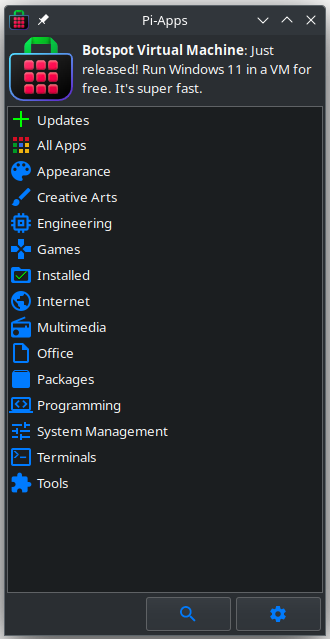
Pi Apps is a neat little app that provides access to the “most popular app store for RaspberryPi computers”. It’s 100% free, OpenSource and written in shell scripts. Perfect!
Installing the “Pi Apps” app is straight forward and only takes a few moments.
Pi-Apps – App store for RaspberryPi
Opening Pi-Apps I found a multitude of OpenSource apps all ready to be installed at the click of a button. In no time at all I’d found Signal and had it installed without getting anywhere near the dreaded Snap.
The version of Signal available at the time of writing this article is v7.39.0 which is fine as this is a stable, bug free version that works reliably.
If you’re using a RaspberryPi computer I can highly recommend you install the Pi-Apps app to enhance your collection of great OpenSource programmes to make your little raspberry flavoured buddy even more useful.
Regular readers of my blog will already know that I am a huge fan of the Linux operating system, it’s clearly evident in most of the content on this website.
I am also a very enthusiastic user of one of the first credit card sized computers that came to be, namely the RaspberryPi. I own all the iterations of this wonderful little computer from the very first version to the latest and greatest, RaspberryPi 5.
This little computer has done more for computing in education than Microsoft and Apple will ever achieve and it’s done it at an incredibly low price making it more accessible to schools, colleges and students than any other platform.
The RaspberryPi has what most consider to be the best support on the planet when it comes to single board computers (SBCs). From the dedicated team that build Raspberry Pi OS, to all the amazing projects and forums that are available, for free on the internet today.
The RaspberryPi computer really has revolutionised computing for the masses.
My RaspberryPi 5 that I am using to write this article.
Raspberry Pi OS really is very good. It’s based on the great Debian distro’ that many of us seasoned Linux users dearly love. It’s light weight, fast and meets the needs of everyone that is venturing into the exciting world of Linux and SBCs for the first time.
Overtime as we all become more experienced with Linux on the RaspberryPi we become more demanding and start to find the Raspberry Pi OS desktop environment lacking. Sure it can be enhanced by adding more and more to it however, it never quite reaches the point of satisfaction and we are always wishing for something more.
With the Pi-5, the latest iteration of this great credit card sized computer, users are now able to seriously think about building a more powerful desktop environment for their little berry flavoured computers.
On my desktop PCs dotted around the house I have used Kubuntu for decades. It’s a slick and powerful desktop environment that has met my needs for many years and I love it more than any other Linux desktop. Sadly Kubuntu isn’t easily available out the box for the RaspberryPi and so I decided that it was time to replicate it as closely as possible on my new, super powerful RaspberryPi 5.
When I ordered my RaspberryPi 5 from Pimoroni I added the NVMe base and 250GB M.2 SSD drive to the order. Up until now I’d always used SD cards however, they are slow and unreliable and so I decided that since the Pi-5 has PCIe it was time to take the step away from SD cards and start using SSD technology.
Getting the OS onto the SSD is a two stage affair. First you have to create a bootable SD card to boot the Pi-5 from and then use it via the RaspberryPi Imager to install the OS onto the SSD. It’s a bit long winded but, easy enough.
Since I’m a huge Kubuntu fan I decided my desktop of choice for my new Pi-5 was going to be KDE-Plasma. I had tried to install this desktop before on older model Pi’s however, it ran so slow that it was unusable. With the new Pi-5’s increased computing power and the speed of the SSD I was confident that this was now possible.
I started out installing the Lite version of Raspberry Pi OS on the SSD. This is a command line only version of Linux that doesn’t include any desktop environment, a nice clean slate to start from.
RaspberryPi Imager showing Pi OS Lite (64bit)
Once the Lite version of the OS was installed on the SSD I shutdown the Pi-5 and removed the SD card and then powered the Pi-5 back up again so that it booted from the SSD.
Upon booting I was presented with the simple Linux Login prompt. After entering my username and password as setup during OS install I landed at the Linux command prompt.
sudo su -
I used sudo to become root user as shown above and then set about building my new KDE based super computer. First I needed to update the operating system with all the latest patches and security fixes.
apt update && apt dist-upgrade
The update and upgrade process ran for a while but, it was soon complete.
reboot
I issued the reboot command and then logged back in again, I was now ready to start building the KDE desktop environment.
sudo su -
apt install kde-plasma-desktop gldriver-test
Becoming root again I type the command to install the KDE-Plasma desktop and the graphics-related config services. There’s a lot of packages to download and install so, I left it to do its thing.
A little while later all the packages were installed and ready to go. I now needed to tell the system to boot into the new graphical user interface instead of the command prompt using systemctl.
systemctl set-default graphical.target
Once this was done I needed to make a change to the display settings using the raspi-config program.
raspi-config
Selecting No.2 on the menu, Display Options and then D2 Screen Blanking, I disabled screen blanking so that I got the full 4K support for my KDE Desktop.
Once the system had been configured for a graphical user interface there was only one thing left to do and that was to shutdown the RaspberryPi.
shutdown -h now
The beautiful KDE-Plasma Desktop on RaspberryPi 5
Powering the Pi-5 back up again I was greeted by the standard KDE Plasma login screen and then, after logging in I was transported to the beautiful KDE desktop. I was now smiling like a Cheshire cat!
The KDE desktop is incredibly snappy on the Pi-5 with an SSD, app’s open instantly and run with minimum CPU exertion. It was now time to load the rest of the KDE application suite to complete the build. Popping open a terminal I hit the command line once more.
sudo su -
apt install kde-full vim yakuake vlc firefox rsyslog
This loads the full set of KDE applications adding just about everything you’ll ever need to the desktop environment. It’s about 1GB of packages and so depending on your internet speed it could take a while but, it’s well worth the wait.
Once complete you are ready to go with a fully functional, snappy, powerful desktop.
I’m extremely pleased with the performance of the Pi-5. KDE is super fast, snappy and responsive. With 8GB of RAM on tap the RaspberryPi has no problem with performance. The Pi-5 and KDE-Plasma really do make a great desktop computer at an incredible cheap price.
Looking for a new computer?
Add a cheap USB sound card and a pair of speakers and this little setup will meet the needs of 90% of the population with ease and go on to satisfy the more seasoned, demanding Linux user or programmer without breaking the bank.
More soon …
We use cookies to ensure that we give you the best experience on our website. If you continue to use this site we will assume that you are happy with it.