I recently updated my Node-RED AllStarLink Control Dashboard to v1.2 to squash a few bugs with the help of Steve, M0XVT who did a lot of testing for me. This spurred me on to get v2.0 completed, tested and released into the wild.
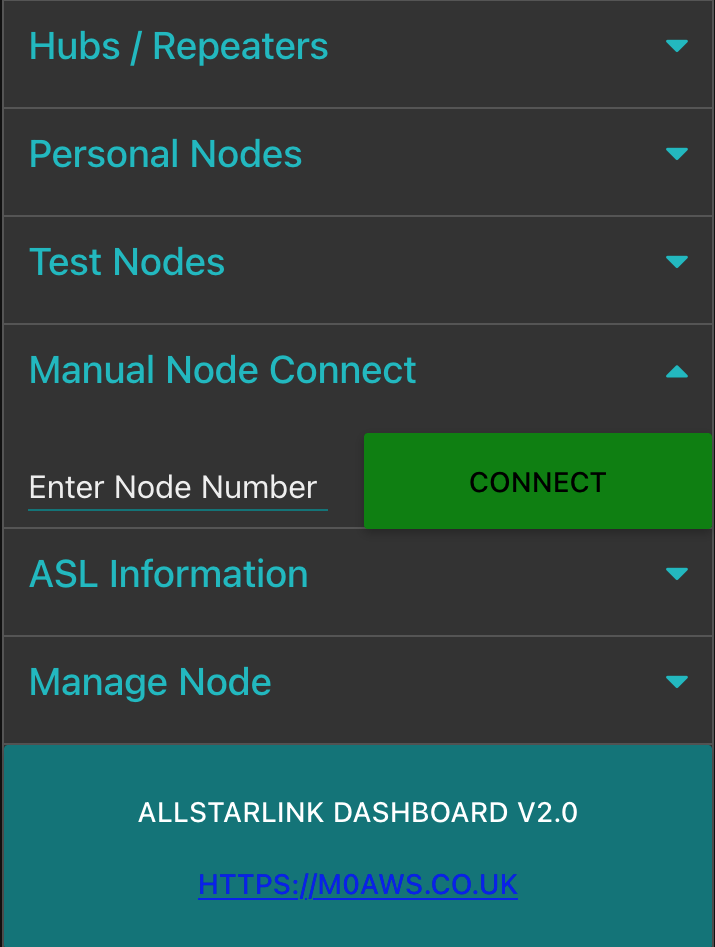
v2.0 comes with a bunch of new functionality that I think many will find useful. I’ve added a Manual Node Connect section that provides the functionality to enter a node number and connect to it, something I wanted to have from the outset but, saved for the second release.
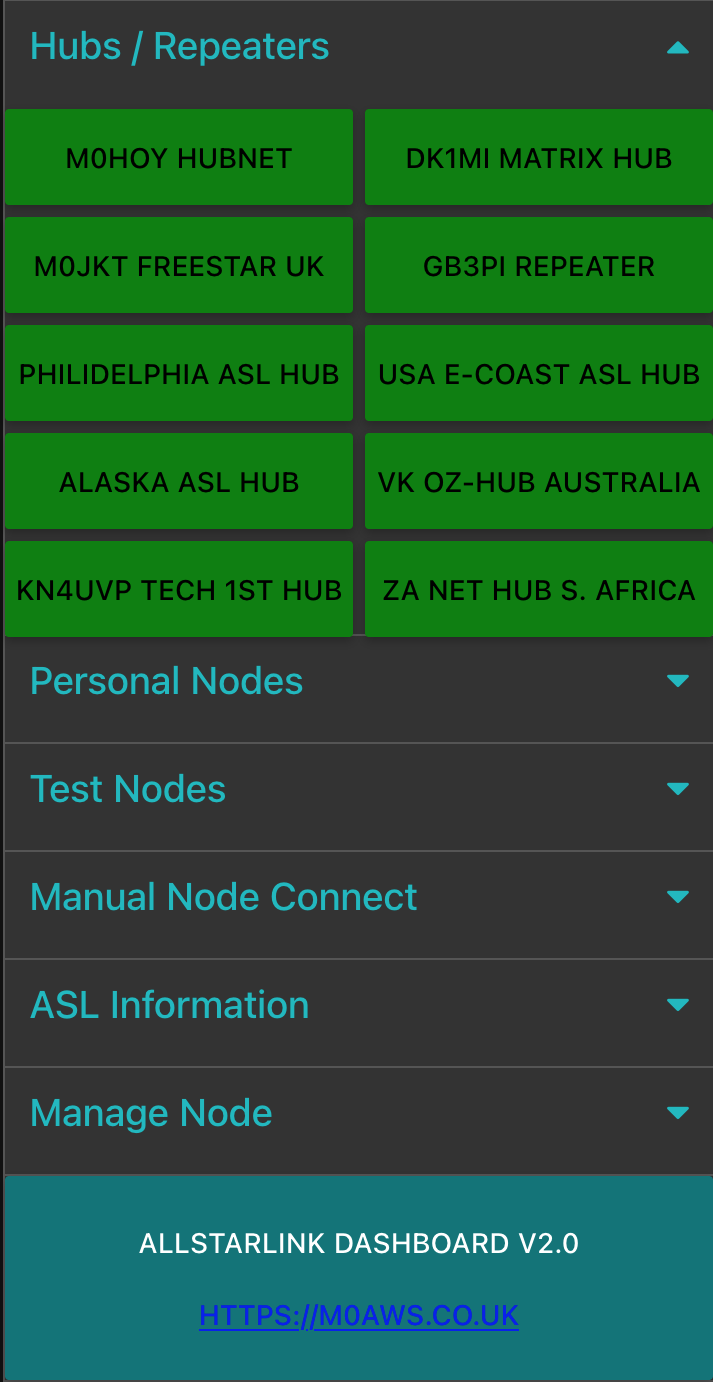
I’ve also updated the the Hubs/Repeaters section so that it provides better global coverage of the AllStarLink network with new nodes in Australia, South Africa and the USA added to the default set.
In the Personal Nodes section of the app I’ve added my own node so, if you do download the app and use it, please connect to my node and say hello! I’d love to hear from people that are using the app and get your feedback.
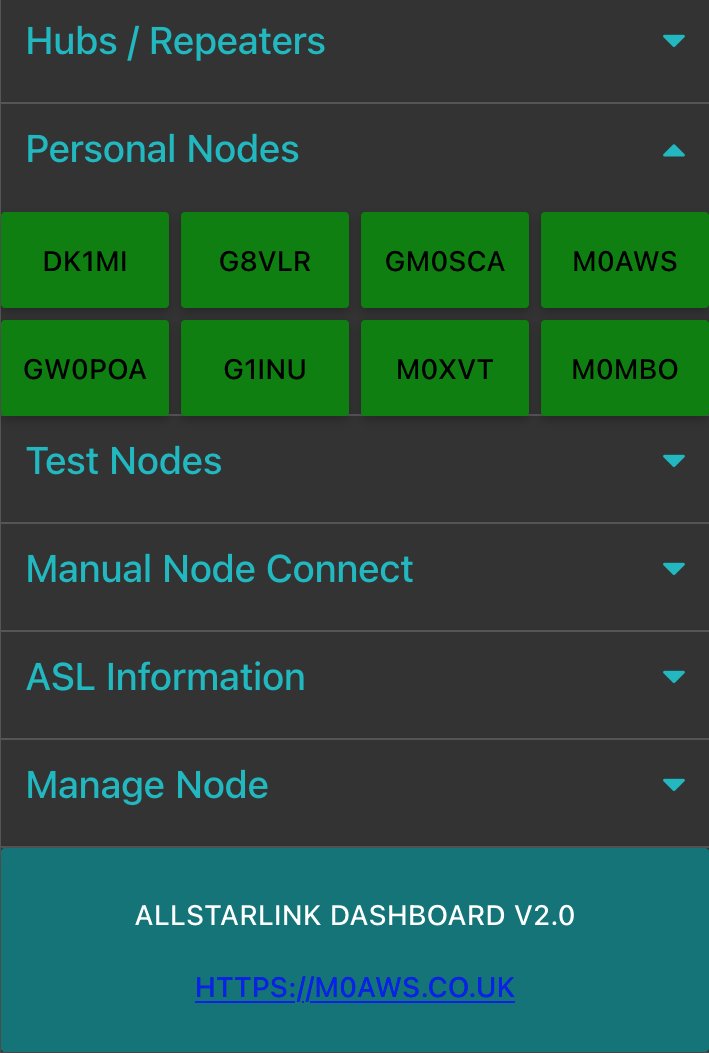
In the Test Nodes section there are now two parrot nodes for audio testing. iParrott is still my favourite however, I’ve also added the HubNet parrot as a second option.

There’s now a new ASL Information section that provides direct access to the network bubble map for your node, a keyed nodes list (Useful for finding nodes that are being used right now), an Active Nodes List and the Full Nodes List for the ASL network. Having access to this information means there really is no need to access Allmon/Supermon to find this information as it’s all available via the app.

Finally, the Manage Node section of the app also gets an update with the addition of a Disconnect All Nodes button. This comes in handy when you’re connected to a bunch of nodes and need to clear down quickly.
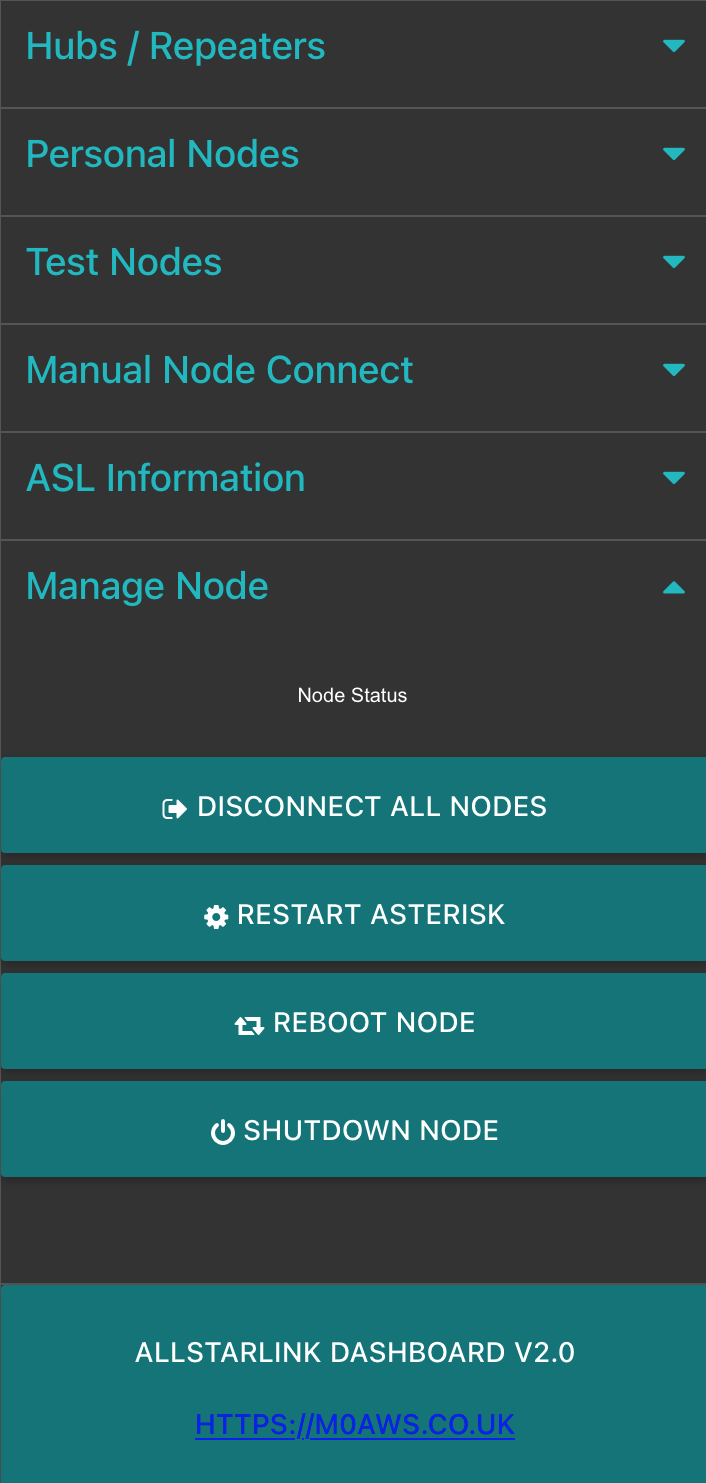
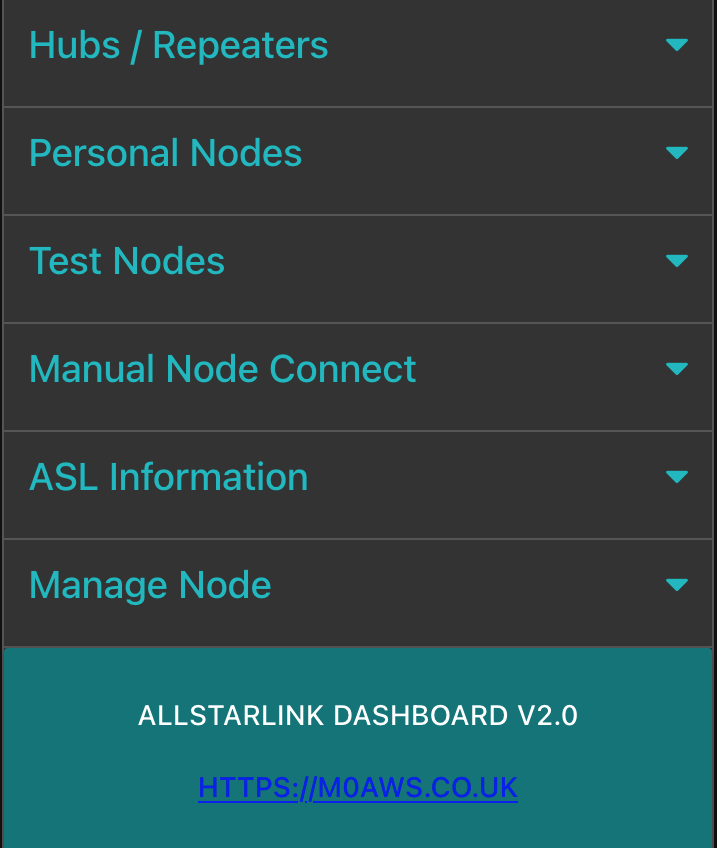
As you can see there’s been quite a few changes to the app providing some new functionality whilst updating the previous version to make it even more useful. You can download the AllStarLink Control Dashboard v2.0 flow below.
To import the flow, open the Node-RED flow editor and import the flow from the burger menu. Once imported, double click the Get ASL Node Number node at the top of the flow, delete the credentials and then create new credentials for connecting to your RaspberryPi/SHARI AllStarLink node. Then go to each blue BigSSH Node in the flow and select your new credentials entry in the drop down list. Once this is done deploy the flow and you’re ready to go.
Note: If you have a v1.x version of the app already running you will need to either delete the flow or disable it by disabling all the trigger (inject) nodes and deploying so that the old and new apps aren’t trying to control the ASL node at the same time.
For more detailed information on how to deploy the app (v1.x/v2.0) from scratch please see my original article for the v1.0 deployment as it covers everything you will need to know.
Thanks to Steve, M0XVT for his help testing v2.0 of the AllStarLink Control Dashboard and getting it out into the wild so quickly.
More soon …