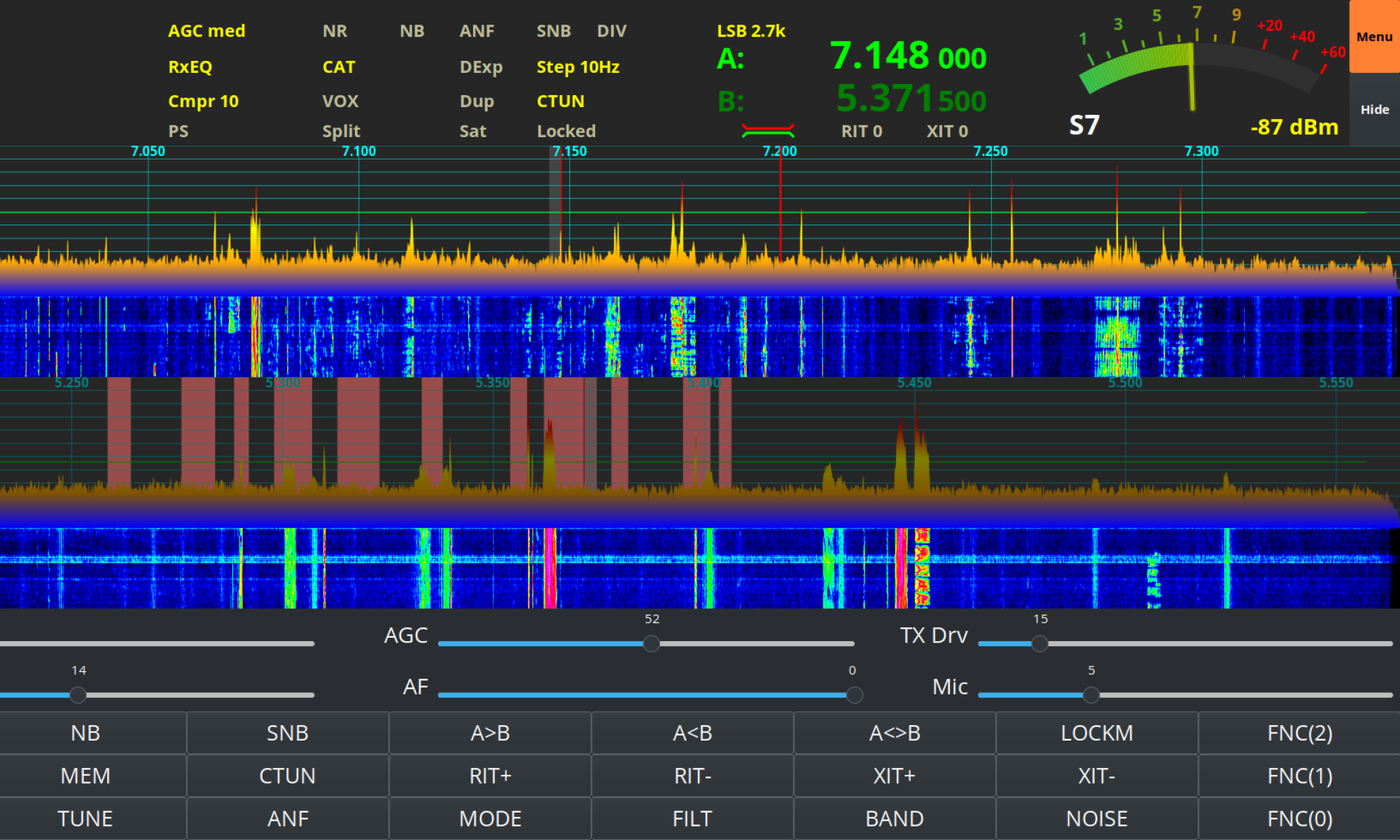
As I detailed in my QO-100 Satellite Ground Station Complete Build article I use a Griffin Powermate VFO knob to control the receive VFO frequency when in split mode or needing to RIT a DX station to get on frequency with them. Since building the ground station this setup has worked perfectly and without error however, for the last couple of days every time I start my Kubuntu Linux PC the USB VFO knob appears on a different USB event queue.
For the last two years the VFO knob has always appeared on /dev/input/event11 but, after connecting a Pluto+ SDR transceiver to the PC via USB the VFO knob now appears randomly on the /dev/input/events tree. This normally doesn’t cause any problems but, my Node-Red QO-100 Ground Station Control Dashboard expects the device to always be on /dev/input/event11.

Initially I tried to find a way to lock the USB VFO knob to /dev/input/event11 however, there doesn’t appear to be a way to do this as the event tree is built at boot time by udev.
Digging deeper into udev I discovered that it’s possible to create a udev rule that is read at boot time, that will search for the device and then create a symlink to it with the same name each time making the USB VFO Knob appear as if it’s always in the same place. This is exactly what I need so I set about writing the udev rule.
To find out what event the USB VFO knob is currently on I ran evtest on the Linux command-line and got the following output.
No device specified, trying to scan all of /dev/input/event*
Available devices:
/dev/input/event0:      Sleep Button
/dev/input/event1:      Power Button
/dev/input/event2:      Power Button
/dev/input/event3:      Video Bus
/dev/input/event4:      Telink Wireless Receiver Mouse
/dev/input/event5:      Telink Wireless Receiver Consumer Control
/dev/input/event6:      Telink Wireless Receiver System Control
/dev/input/event7:      Telink Wireless Receiver
/dev/input/event8:      Kensington USB/PS2 Orbit
/dev/input/event9:      PixArt USB Optical Mouse
/dev/input/event10:     USB PnP Audio Device
/dev/input/event11:     HDA Intel PCH Front Mic
/dev/input/event12:     HDA Intel PCH Rear Mic
/dev/input/event13:     HDA Intel PCH Line
/dev/input/event14:     HDA Intel PCH Line Out Front
/dev/input/event15:     HDA Intel PCH Line Out Surround
/dev/input/event16:     HDA Intel PCH Line Out CLFE
/dev/input/event17:     HDA Intel PCH Line Out Side
/dev/input/event18:     HDA Intel PCH Front Headphone
/dev/input/event19:     HDA Intel PCH HDMI/DP,pcm=3
/dev/input/event20:     HDA Intel PCH HDMI/DP,pcm=7
/dev/input/event21:     HDA Intel PCH HDMI/DP,pcm=8
/dev/input/event22:     HDA Intel PCH HDMI/DP,pcm=9
/dev/input/event23:     HDA Intel PCH HDMI/DP,pcm=10
/dev/input/event24:     Griffin PowerMate
/dev/input/event25:     Realtek RTL2832U reference design
This shows that currently the Griffin Powermate VFO knob is on event 24.
Having this information I now needed to use the udevadm command to obtain the Vendor and Product ID of the USB VFO knob.
udevadm info -a /dev/input/event24This returns a lot of information about the USB device, more than I was expecting but, upon close inspection I found the Vendor and Product IDs.
ATTRS{id/product}=="0410"
ATTRS{id/vendor}=="077d"
Now that I have the Vendor and Product IDs I could start writing the udev rule.
Using the vi text editor on the command-line I created the necessary file in the
/etc/udev/rules.d/ directory.rule
vi /etc/udev/rules.d/90-powermate.rulesInto the file I wrote the following udev rule.
SUBSYSTEMS=="input", ATTRS{id/product}=="0410", ATTRS{id/vendor}=="077d", SYMLINK += "powermate"Note: That should all be on one line in the file not wrapped as shown above.
This one line rule sets the subsystem to input events, sets the Product and Vendor IDs to that of the Griffin Powermate USB VFO knob and then creates the symlink /dev/powermate
Once I’d completed the rule, I saved the file and exited the vi text editor.
Next I needed to use udevadm to get it to re-read the udev rules as if it were boot time and check that it created the symlink.
udevadm control -ROnce the udevadm command completed I used the ls command to see if the symlink had been created.
ls -la /dev/powermate
lrwxrwxrwx 1 root root 13 Jul  3 15:32 /dev/powermate -> input/event24
As shown above the symlink had been created and I could now enter
/dev/powermate into my Node-Red code so that it always finds the VFO knob regardless of what event number it appears on.
Just to make sure it worked correctly at boot time, I shutdown my Kubuntu linux PC and started it from a cold boot. Sure enough the
/dev/powermate symlink was created and pointed to the new event number in the /dev/input tree, problem solved!
I hope this information is useful to Linux users especially as it can be used for any USB input device.
It’s worth noting that you will need to be root user to run most of the commands or use sudo from your regular user account.
More soon ….